If you have an active account from any IPTV provider, you can use the credentials or the M3U URL to stream all the video content on Roku. In the Roku Channel Store, you can’t find any IPTV providers. In the case of IPTV players, there are two apps available in the Channel Store. Let’s see how to use those two IPTV players to stream the video contnet from your IPTV provider.
Steps to Install IPTV Player for Roku
1: Plug in the Roku device to the HDMI port on the TV.
2: Turn on Roku and go to the Roku Channel Store.
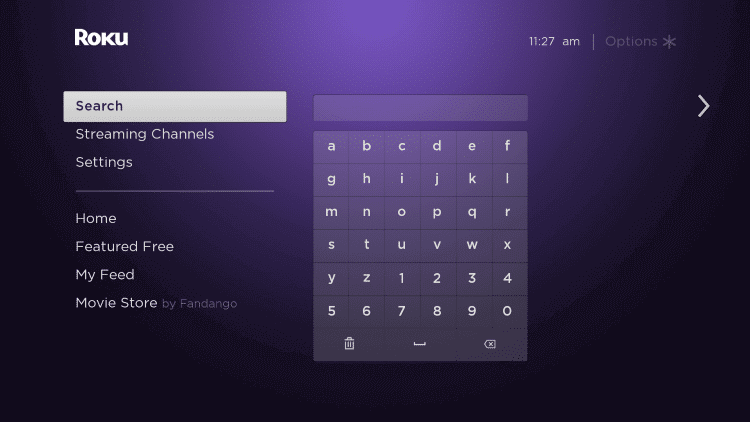
3: Search for the Smart IPTV or Typhoon Labs IPTV app.
4: Select the IPTV player app from the search results. We have selected the Smart IPTV app.
5: On the next screen, tap the Add to Channel button to add the IPTV player on Roku.
6: After the installation, tap Go to Channel to open the IPTV app.
How to Use IPTV Player on Roku
1: Open the Smart IPTV player on Roku.
2: Click the New Playlist option.
3: Enter the M3U URL from your IPTV provider and click the Play Video button.
4: The specific video content will be played on your Roku device.
5: Select the playlist name which you added before. You can see all the IPTV channels appear on the TV screen.
Note: Recently, the M3U Playlist Player is removed from the Roku Channel Store.
How to Get IPTV on Roku Using IPTV Smarters App [Old Method]
You can install the IPTV Smarters app on your Roku by accessing the developer mode. We chose the IPTV Smarters app since it is one of the best IPTV players for Windows PC. With the new update on Roku, the ability to install apps in developer mode is removed from the device.
- Enable Developer Settings on Roku.
- Install IPTV Smarters
- Get IPTV Smarters on PC.
- Stream IPTV on Roku Using IPTV Smarters
Enable Developer Settings on Roku
1: On your Roku remote, press the Home button (3 times), Up arrow (2 times), Left arrow (2 times), Right arrow (1 time), Left arrow (1 time), Right arrow (1 time), Left arrow (1 time), and Right arrow (1 time).
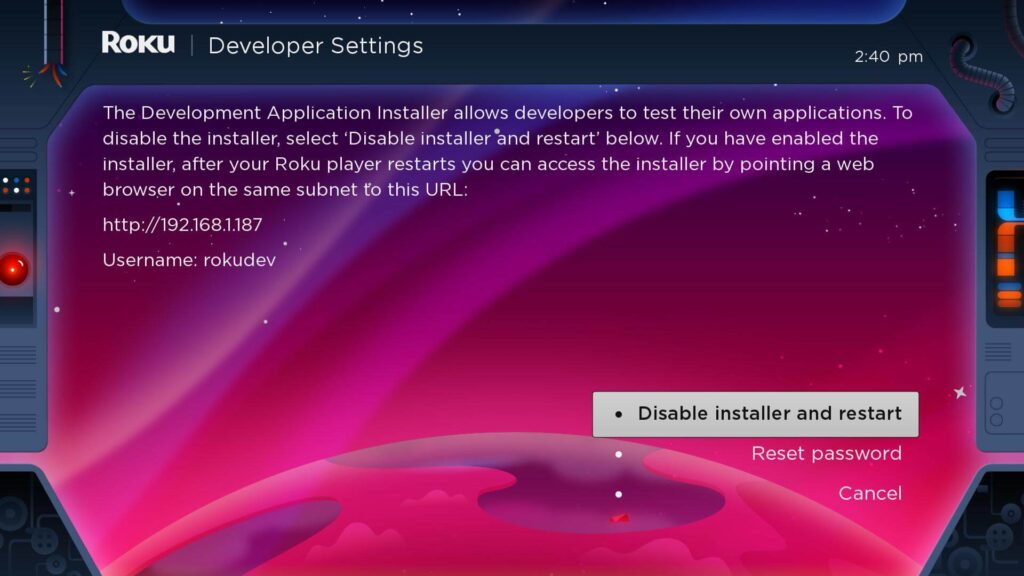
2: Now, the Developer Settings page will appear.
3: Note down the IP address displayed.
4: Then, on the bottom right, if it shows Disable installer and restart, leave it as it is. If it is showing, Enable installer and restart, and click on it to disable it.
5: Click the I Agree button.
6: Now, you have to create a web server password.
7: After setting the password, click the Set password and reboot button.
8: Now, you have enabled the Developer Settings on Roku.
Get IPTV Smarters on PC
1: Go to the IPTV Smarters website on your PC.
2: Download the IPTV Smarters package file.
3: Save the package file in any easily accessible location.
Install IPTV Smarters
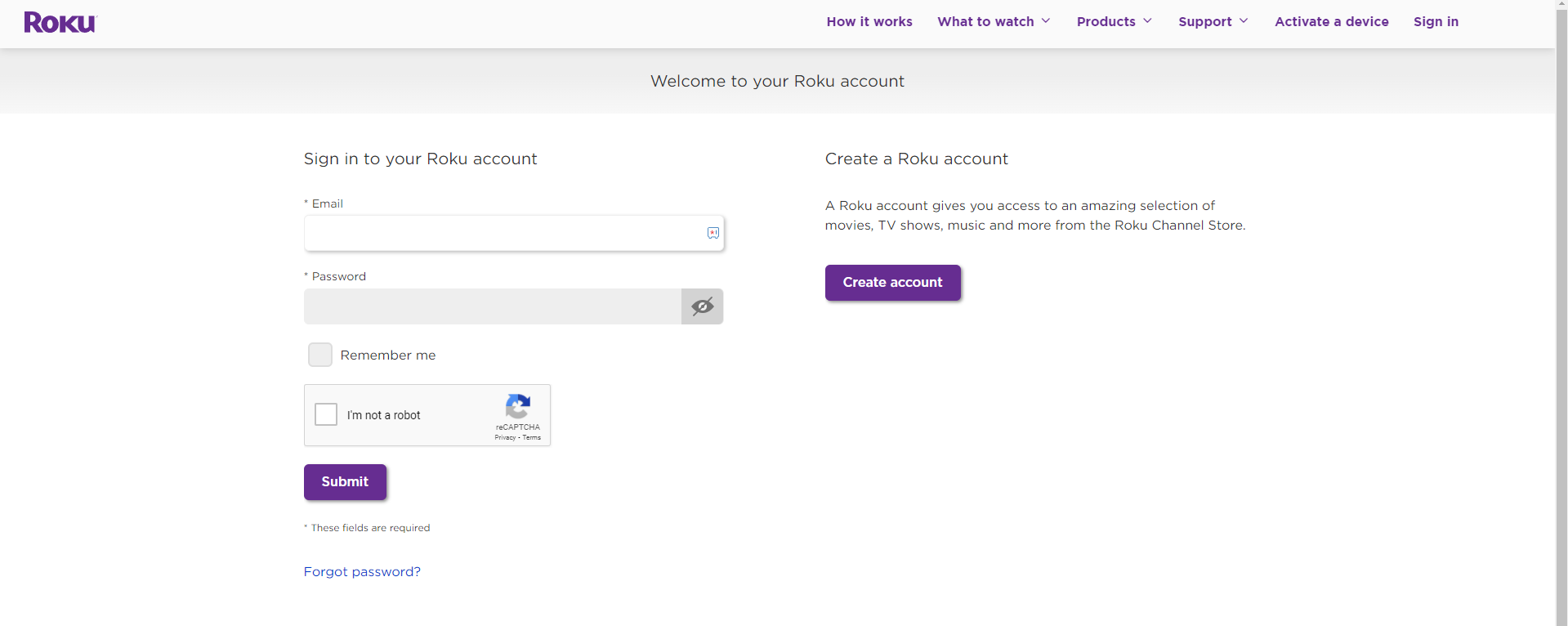
1: Go to the Roku website and sign in with the same Roku account that you are using on your Roku device.
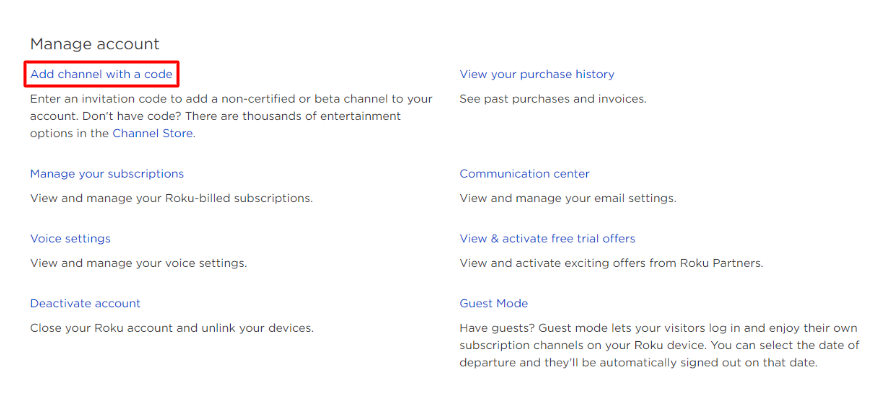
2: Navigate to your Roku account and click Add channel with a code under the Manage Account menu.
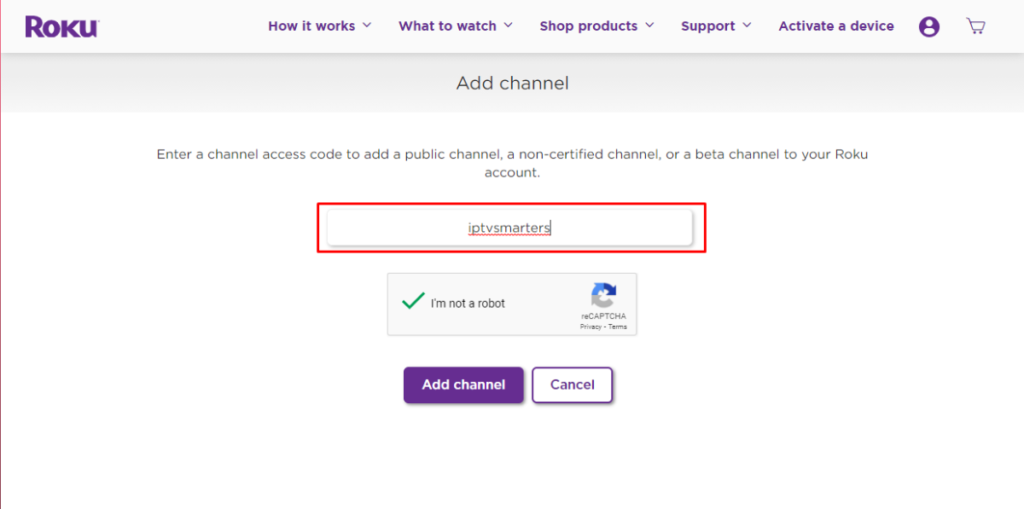
3: Enter iptvsmarters in the search box and click the Add channel button.
4: If any warning message appears, click the OK button.
5: Then, press the Yes, add channel button to get the IPTV Smarters app.
Stream IPTV on Roku
1: On your PC, open any web browser and enter your Roku IP address.
2: The sign-in page will appear. Enter the username as rokudev and the web server password.
3: On the Development Application Installer, click the Upload button and choose the IPTV Smarters package.
4: Then, click Install to install the IPTV Smarters app on your Roku.
5: After the installation, the IPTV Smarters app will be available on your Roku device.
6: Open the IPTV Smarters Player app and sign in with your IPTV account.
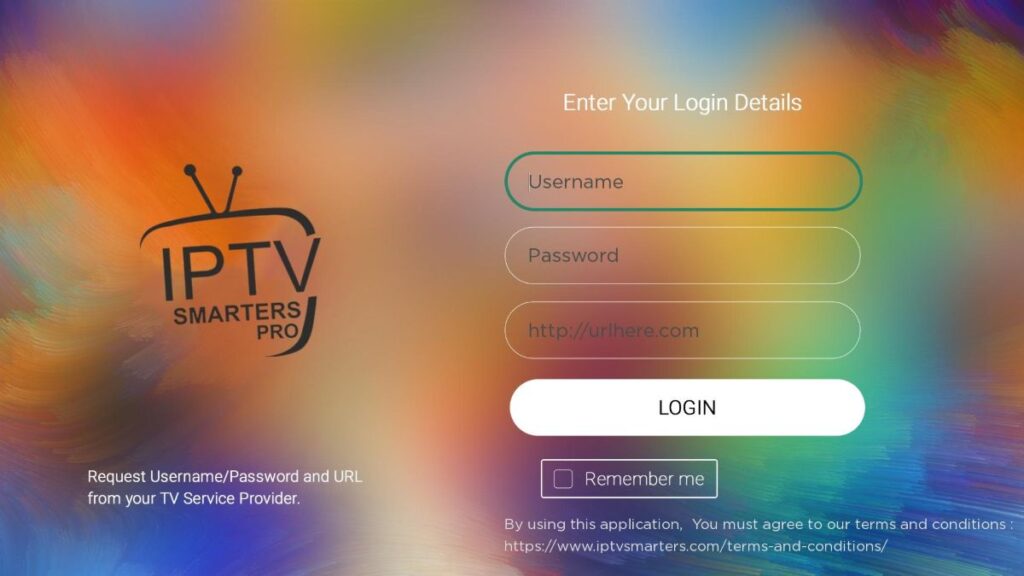
7: Watch all the live TV channels.
IPTV Codes for Roku
Apart from IPTV Smarters, you can use the codes in the below table to get the respective IPTV player app usign the Developer Mode.
| App Name | Channel Code |
|---|---|
| Nowhere TV | H9DWC |
| Ace TV | acetv |
| Toonami Aftermath TV | RRNNKLQ |
| Amateurlogic | Alogic |
| Newswire | newswire |
| Super Stalker | STBEMU |
| MaddyGTV Late Night | MGTVLN |
| Al Jazeera | aljazzeraenglish |
| EuroRoku | euroroku |
| Hero Talkies | herotalkies |
Steps to Watch IPTV on Roku through Screen Mirroring
To stream IPTV on your Roku-connected TV, you need to install the Smart IPTV app on your device and use the cast or mirror option on your device to watch IPTV on TV. Make sure that screen mirroring is enabled on Roku.
Screen Mirror IPTV on Roku using Android
1: Plug in your Roku device to the HDMI port on the TV.
2: Connect your Mobile and Roku device to the same WiFi.
3: Open the Google Play Store app on your Android device.
4: Search for the Smart IPTV app and select the app from the search result.
5: Install and launch the Smart IPTV app on your mobile device.
6: Enter your IPTV login credentials and subscription details into the app.
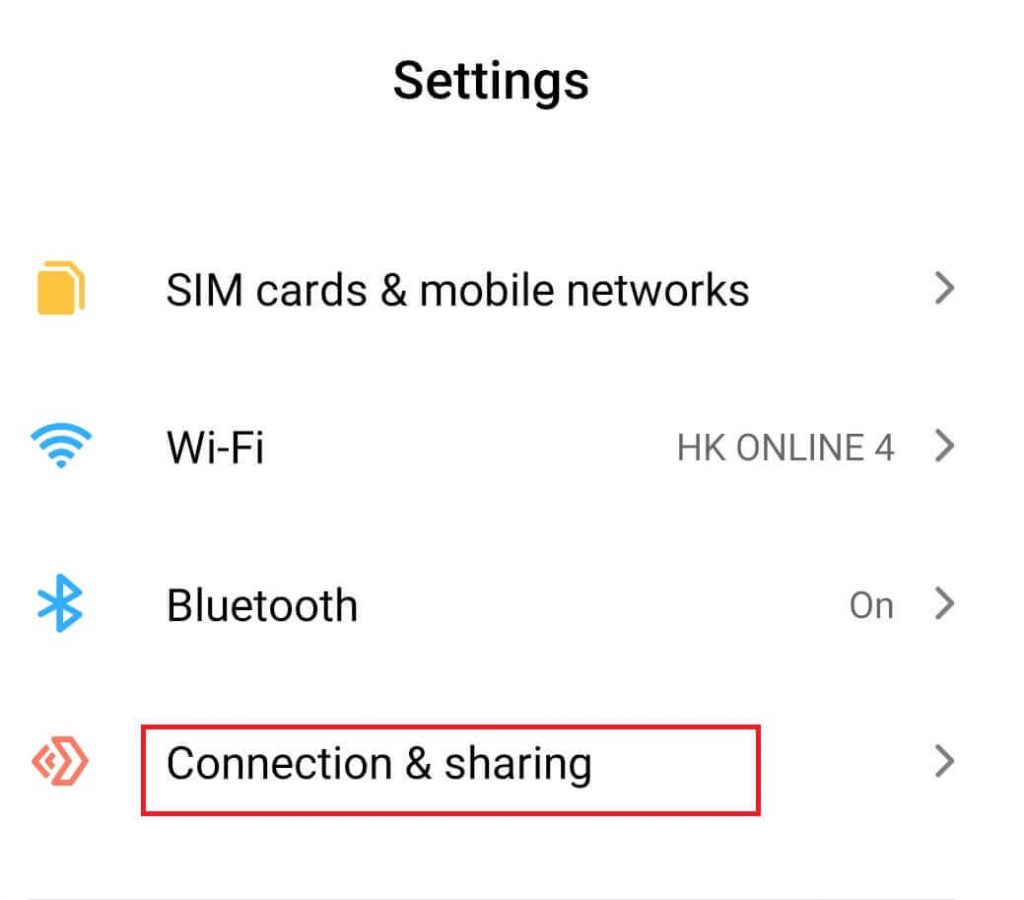
7: Go to Settings and choose Connection & Sharing option.
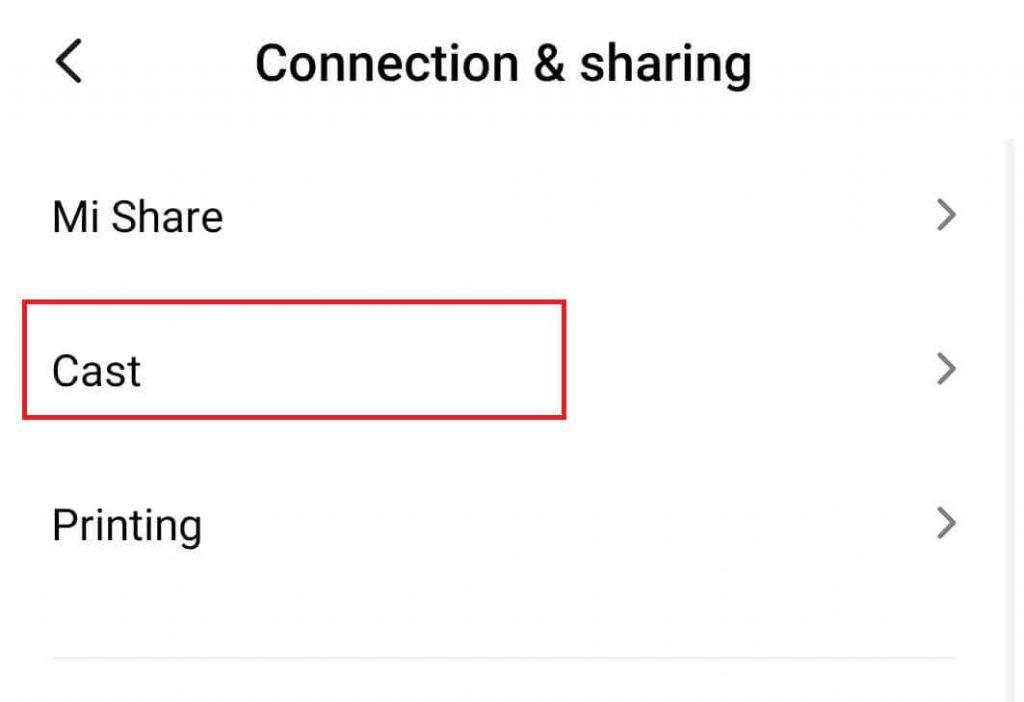
8: Select Cast and tap the Cast toggle to enable it. You can also click the Cast icon on the Notification Panel on your smartphone.
9: It will search for nearby devices which are connected to the same network as your mobile is connected.
10: Select your Roku device from the search result.
11: Choose either Accept or Always Accept on the Roku-connected TV screen.
12: Now, your TV screen will display the contents of your mobile screen.
13: Open the Smart IPTV app on your mobile and stream any IPTV content. It will be displayed on your TV screen.
Screen Mirror IPTV on Roku from iPhone
For iPhones and iPads, only a handful of IPTV players are available on the App Store. A few of them are GSE SMART IPTV Player, 247 IPTV Player, and IPTV Streamer Pro.
1: Install any one of the IPTV Player apps on your iPhone or iPad.
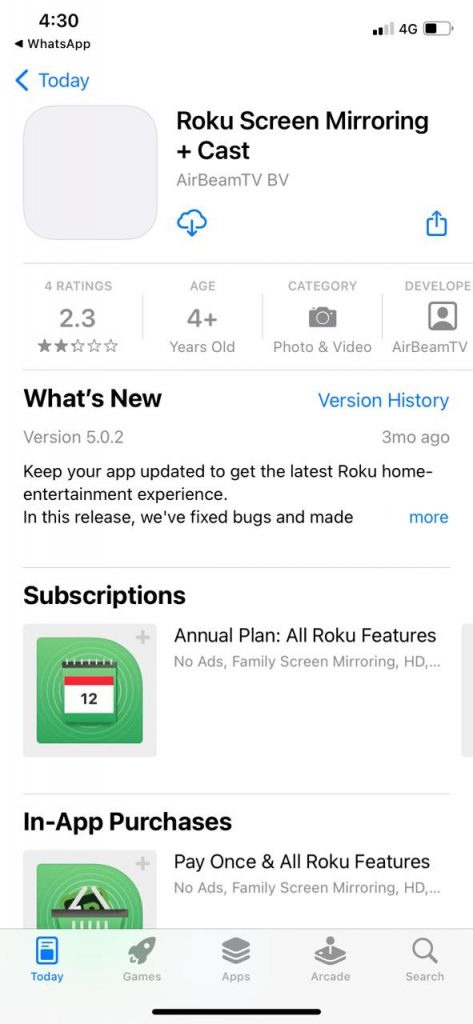
2: To screen mirror your iPhone or iPad to Roku, you need the AirBeam app. Install the AirBeam app for Roku Screen Mirroring + Cast from the App Store.
3: Then, connect your iPhone or iPad and Roku to the same WiFi connection.
4: Now, open the Roku Screen Mirroring + Cast app on your iPhone.
5: Click the Screen Mirror option from the app.
6: From the list of devices, choose your Roku device.
7: Then, open the IPTV Player app and sign in with your IPTV Provider account.
8: Play any of the IPTV video content on your iOS device. It will appear on your Roku screen.
Screen Mirror IPTV on Roku Using PC
You can screen mirror your Windows PC to any Roku device with ease. With that, you can screen mirror the IPTV videos to your Roku screen. A lot of IPTV providers will offer a dedicated app for PCs. And a few of them offers a web player. Before getting into the steps, make sure to connect your PC and Roku to the same WiFi connection.
1: Go to the IPTV website or the IPTV app on your PC.
2: Sign in with your IPTV account.
3: Press the Windows + P buttons. Choose the Duplicate button.
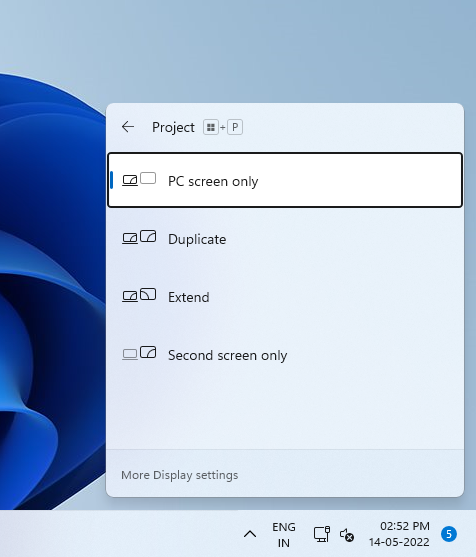
4: Choose your Roku device.
5: Now, play any IPTV video from your PC.
6: It will appear on your Roku screen.
Using Third-Party Screen Mirroring Apps:
Some users have explored third-party screen mirroring apps that claim to allow IPTV streaming on Roku. Be cautious when using such applications, as they may not be officially supported by Roku and could pose security risks. Additionally, their effectiveness may vary.
Casting from Mobile Apps:
If your IPTV service offers mobile apps with casting capabilities, you can use the casting feature to send content from the mobile app to your Roku device. Ensure that both your mobile device and Roku are on the same Wi-Fi network.
Plex Media Server:
You can set up a Plex Media Server on your computer and use the Plex app on Roku. Some IPTV providers offer Plex support. This involves creating a playlist or M3U file that Plex can recognize. Please note that not all IPTV services may be compatible with Plex.
Direct Cable Connection:
If your Roku device has an HDMI input port, you can connect a streaming device (e.g., Amazon Fire Stick, Android TV Box) that supports IPTV directly to the Roku device. Switch between the Roku input and the streaming device input as needed.
Check Roku Channel Store:
Periodically check the Roku Channel Store for any new IPTV-related channels or updates. Roku may introduce new features or channels that support IPTV.
Important Note:
Keep in mind that the landscape of IPTV and device compatibility is dynamic. Roku’s policies and available features may change over time. Always check the official Roku Channel Store and Roku’s official announcements for the latest information.
Before attempting any workaround or using third-party applications, it’s crucial to consider potential risks, including security and terms of service violations. Always use IPTV services and applications in accordance with applicable laws and regulations.